

Header, footer & legal
Each Flyer is anchored by a header and footer zone. These two zones exist on all pages, with a select number of variations to allow for maximum flexibility across the Flyer sizes and tiers. These zones contain required and optional elements and can be customized for each week.
In addition to these two zones, each Flyer requires legal copy. Legal copy can be related to the products we sell, the geographical location of the Flyer, programs and services we are promoting, etc. There are multiple options for legal copy placement, depending on the communication requirements.
Header zone summary
Located at the top of all Flyers, the header zone can contain information such as sales dates, whispers or headlines. Between the front cover and the inside spreads, the header zone has slight differences in order to best accommodate the information needed on those pages.
Header zone elements

Front cover header
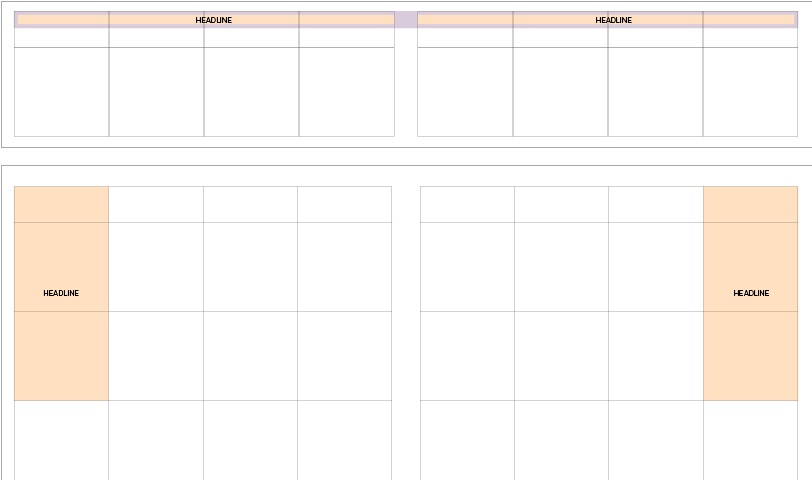
Interior spread headers
Sales dates (required):
Located within the header zone, the sales dates zone is located in a fixed, full width, left-aligned position. The width can be adjusted to accommodate a whisper zone when required. Sales dates may only appear on the front cover and should not be repeated in headers located on inside spreads.
Whisper zone (optional):
Located within the header zone, the whisper zone contains messaging related to holidays/special occasions. It has an adjustable width to a maximum of three grid units and has a minimum of 1/2 leaf margins on the left and right edges. When not in use, the sales date zone extends the full width of the header zone.
Headline (optional):
Located within the headers, the headline zone contains spread specific headlines. These headlines must apply to an entire spread and can only appear in headers that exist within the inner pages of the Flyer.
With the aim to create a consistent experience for our customers, the header zones have been optimized for the different Flyer sizes and locations throughout the Flyer. When creating a header, be mindful of the differences in the guidelines between square tab and Narrow Broad Flyer sizes, front cover and inside spread placements and page/spread and in-slot header types.
Narrow Broad vs. Square Tab
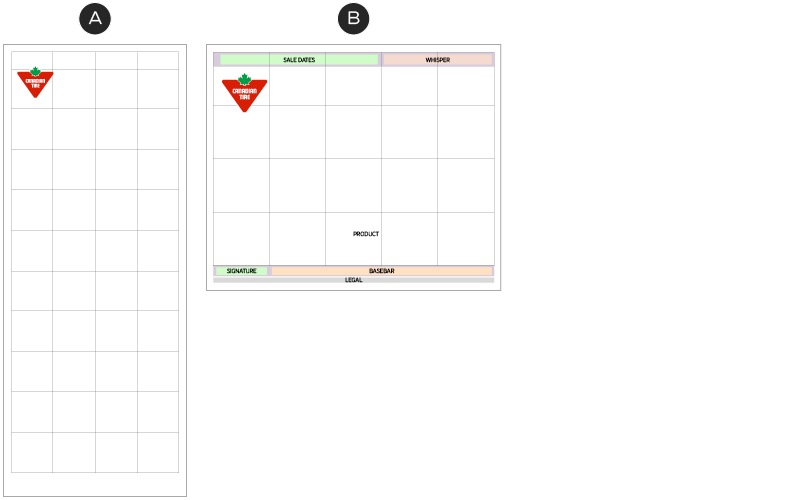
A – Narrow Broad
B – Square Tab
When creating a header zone for a Flyer, there are slight variances between those created for Square Tab and Narrow Broad Flyers. All Flyers are built on a grid which aims to keep the vast amount of information in a Flyer clean and organized. These grid units must all be equal in order for it to translate to the digital environment. Due to the different paper sizes, Square Tab and Narrow Broad Flyers use different grids. Square Tab Flyers break down into 5x4 grids and narrow broads are 4x8, with an fraction of grid unit remaining. With the different amounts of available space in the two Flyer sizes, the placement of the header changes slightly in relation to the grid.
Because of the perfection of the grid on the Square Tab Flyer, headers live within the grid in the first row, aligned to the top. When broken down into the equal sized grid units, a Narrow Broad Flyer has excess space remaining. This space is placed above the grid at the top of the page and contains the header. Since it exists outside of the grid, any information within this location does not automatically get converted to the digital space. Keep in mind that manual revisions to the layout must be completed in order for the header to be included in the digital experience.
Front cover vs. inside spreads
Front cover header

Inside page/spread header
Headers on front covers are consistent every week, with the exception of the whisper element. Every front cover, regardless of page size utilizes the small header. This must contain the sales date and should not be altered in size between Square Tab and Narrow Broad. The colour of the front cover header must always be CT Black.
Inside spreads of the Flyer have more flexibility with headers. They can use any of the three sizes or two types of headers and can appear at the top or mid-page. They can be coloured with a campaign or seasonal colour and can contain relevant lockups and/or headlines.
On occasion, an inside page/spread will contain sections that require their own headers to create stories that connect with our customers. In these instances, additional headers can be applied to the page.
Headers are most effective when there are a limited amount on a page/spread. The maximum number of headers that can appear per page is 3. When using multiple headers on a page/spread, the size can vary but the header type should remain consistent. Regardless of which size or type of in use, the header(s) on a page/spread must appear top aligned to the top of a row on the underlying grid.
Header types

Page/spread header

In-slot headers
There are two types of headers which can be used in the Flyer. Page headers are wide and short bars the span the entire width of a page/spread. This type of header doesn't translate as easily to the digital space and is most commonly used on front covers and the lead spreads of Narrow Broad Flyers. Page headers can appear across the top of a page or when more than one is required on a spread, can be placed mid-page.
In-slot headers are digitally optimized and can appear on any spread within the Flyer. Since the header exists within the Flyer grid, the size and orientation can be adjusted as needed.
Note: The maximum width of of any element with content is three grid units in width. Headers may extend beyond three grid units, but headlines may not.
Header zone construction
Page/spread headers

A – Mini
B – Small
C – Large
Page/spread headers can appear on any page throughout the Flyer. This header comes in three different sizes: mini, small and large. These different sizes can be used on any page of the interior of the Flyer in both Narrow Broad and Square Tab format.
Page/spread headers: mini

A – Height: 0p8 in height, full width (including across the gutter) Colour: CT Soft Black or seasonal/campaign colour.
B – 0p6 clear space below
The mini header acts as a anchor at the top of a spread. This header is often used when a spread visually needs an element to help to ground the page yet no headline is required. We often see this used in the Narrow Broad Flyer format on interior spreads due to the immense amount of white on the page. The mini header is 0p8 in height and should run across the full width of the page or spread. By default, all headers should be CT Soft Black, but can be customized to match the weekly seasonal or campaign colour. Mini headers should not be positioned mid page as the same result can be achieved through the use of background colour blocking.
Page/spread headers: small

A – Height: 2p9 in height, full width (including across the gutter) Colour: CT Soft Black or seasonal/campaign colour.
B – 0p6 clear space below
The small header is the mid-size option for page/spread headlines. It can contain a small amount of information but does not take up too much space on a page/spread. This header is commonly seen on the front cover to contain the sales date and whisper. When placed on the front cover, the small header is slightly enlarged to help emphasize the sales dates.
Front cover header
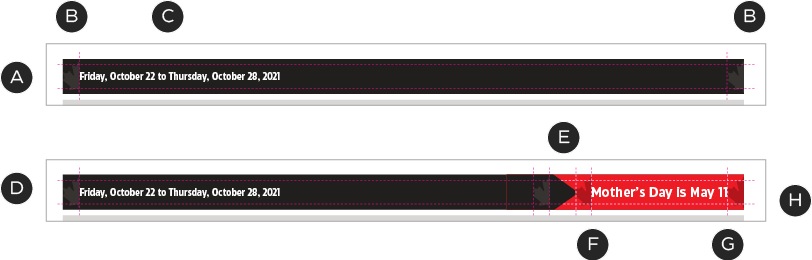
Small front cover header with single language
A – Height: 2p9 Colour: CT Soft Black (required).
B – 1/2 leaf clear space on left and right sides. Sale date copy must align with the red of the CT logo.
C – Sales date type—single language: CT Eastman Condensed, Bold, 11/12.5pt in white.
D – 0p6 top and bottom margins.
E – Whisper zone width can vary (up to the lesser of 50% page width or 3 grid units) but must be have a1/2 leaf of clear space on either side of the Triangle shape.
F – Whisper type—single language: CT Eastman Grotesque, Bold 14/12pt text.
G – CT Red
H – 0p6 clear space below header

Small front cover header in bilingual
A – French copy: CT Eastman Condensed, Bold, 11/12.5pt in white
B – English copy: CT Eastman Condensed, Bold, 9/12.5pt in white
C – French copy: CT Eastman Grotesque, Bold 11/12.5pt text
D – French copy: CT Eastman Grotesque, Bold 9/12.5pt text
Internal spread small header

Small spread header with single language
A – Height: 2p2 Colour: CT Soft Black or weekly seasonal/campaign colour
B – 1p0 margins on left and right sides
C – Headline type—single language: CT Eastman Condensed, Bold, 20pt in white, left aligned.
D – Headlines can be contained to a single page, run across two or be repeated on both pages of a spread. Headlines that cross the gutter can be centre aligned. Headlines that repeat can be aligned to the outer edges of the spread.
E – Product cannot overlap a small header
F – 0p6 top and bottom margins
G – 0p6 clear space below header

Small spread header in bilingual
A – French copy: CT Eastman Condensed, Bold, 20pt in white, left aligned
B – English copy: CT Eastman Condensed, Bold, 17pt in white, left aligned
C – 1p0 gap between languages
Page/spread headers: large

Large header: 4p1 in height, full width (including across the gutter on a spread) in CT Soft Black or seasonal/campaign colour.
The large header is designed to be used in the inside spreads of the Flyer and give the option of using stronger messaging. This version of the header can contain a headline and/or lockup. When placed at the top of a page, it must apply to the entire spread. When multiple headers are in use on a single page/spread, ensure that the headlines contained clearly relate to a specific section or story.

Large spread header with single language
A – Height: 4p1 Colour: CT Soft Black or weekly seasonal/campaign colour
B – 1p0 margins on left and right sides
C – Headline type—single language: CT Eastman Condensed, Bold, 30pt in white, left aligned.
D – Headlines can be contained to a single page, run across two or be repeated on both pages of a spread. Headlines that cross the gutter can be centre aligned. Headlines that repeat can be aligned to the outer edges of the spread.
E – Product can overlap a large header but not headline copy.
F – 0p6 top and bottom margins
G – 0p6 clear space below header

Large spread header in bilingual
A – French copy: CT Eastman Condensed, Bold, 20/18pt in white, left aligned
B – English copy: CT Eastman Condensed, Bold, 17/18pt in white, left aligned
In-slot headers
Vertical in-slot header
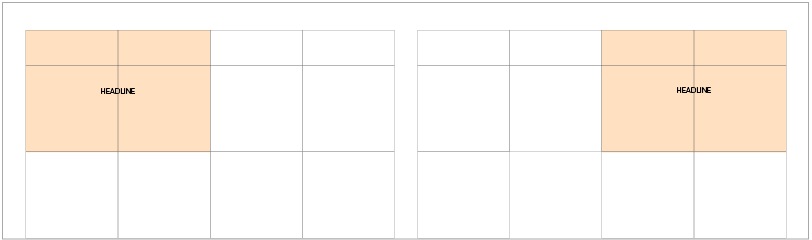
Horizontal in-slot header
In-slot spread headers are best suited for digital integration and are the recommended treatment for spread headlines. They can vary in size but have fixed positions on the outer top edges of the spread. These types of headers can appear on both or a single page of a spread. When multiple headers are in use, the additional ones can appear mid page and vary in height and width. Ensure that these headers clearly relate to a specific section or story on the page.
Headers can contain a background colour of a CT Brand Colour or the week’s seasonal/campaign colour. Headline text can be paired with a lockup, but it must be left aligned and maintain the 1p0 margins. In-slot spread headlines can be combined with a thin header if needed and must maintain a clear hierarchy of messaging.
Note: in-slot spread headlines on the Narrow Broad Flyer grid can extend to the top of the page or to the header, while adhering to the required clear space.
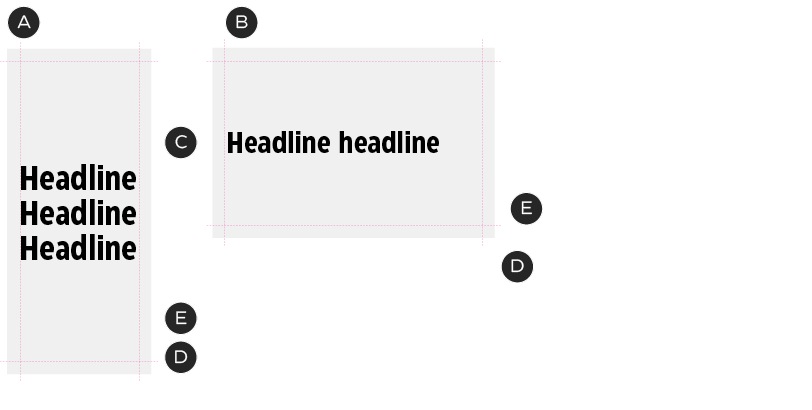
In-slot spread header in single language
A – Vertical layout option
Width: 1 grid unit
Height: variable—maximum of 4 grid units
B – Horizontal layout option
Width: variable—maximum of 3 grid units
Height: 1 grid unit
C – Headline copy: CT Eastman Condensed, Bold, 30/35pt in white, left aligned and vertically centered
D – 1p0 margins on all sides
E – Colour: CT soft black or weekly seasonal/campaign colour

In-slot spread header in bilingual
A – French headline copy: CT Eastman Condensed, Bold, 30/35pt in white, left aligned and vertically centered
B – English headline copy: CT Eastman Condensed, Bold, 26/30pt
C – 1p0 space between languages
Footer zone summary
The footer zone appears on all pages of every Flyer. It contains elements such as the page number, signature, a basebar message and space for legal copy. The construction of this zone is very consistent across all pages with the exception of the front cover, which replaces the page number with the optional signature element.
Footer zone elements

Front cover footer zone
A – Signature
B – Basebar message
C – Legal

Interior spread footer zone
A – Page number
B – Basebar message
C – Legal
Signature (optional):
The signature is an optional element which can contain a secondary message to the Flyer's primary lockup or Brand Signature. This space is commonly used during event weeks to hold one of our Brand Signatures while an event lockup is in use. When not in use, the basebar message can span the entire width of the footer zone.
Page number (required*):
Located on the outer edges of the footer zone, the page number is a required element on all pages with the exception of the front cover. This element includes the page number and the Canadian Tire Primary Brandmark. The page number should always appear on the outward side of the element.
Basebar message (required):
Taking up the majority of the footer, the basebar message element contains promotional information on products and services offered at Canadian Tire. Similar to an NPP, this space can contain owned brand message or a non-CTR owned brand message. Non-owned brands can maintain their individual branding but must adhere to the common side and margin specifications.
Legal (required):
All pages include an area for legal at the bottom of the page. This element exists outside of the grid and below the signature/basebar message. The legal in this area can apply to any copy on the page as long as it includes the corresponding indicator (i.e., * or dagger).
Footer zone construction
Signature
The signature element can contain a lockup or Brand Signature that is secondary to another one of the page. This is commonly seen during event weeks. When placing a Brand Signature, you do not need to repeat the Canadian Tire logo. For more guidelines on how to use a Brand Signature in isolation, please see the Brand Signature page.
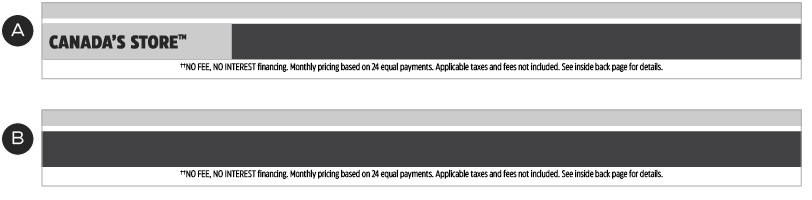
A – Footer with signature element
B – Footer with no signature element
Signtures are an optional element which no not need to be included on the Flyer front cover. When a signature is not in use, the basebar message should extend to be the full width.

Front cover signature in a single language
A – Height: 2p2 Width: 1 grid units, maximum 2 grid units
B – Left and right margins should align with slot margin
C – Brand signature vertically-centered and left-aligned
D – 0p3 top and bottom margins

Bilingual front page signature
A – French version first
B – 0p3 space between Brand Signatures
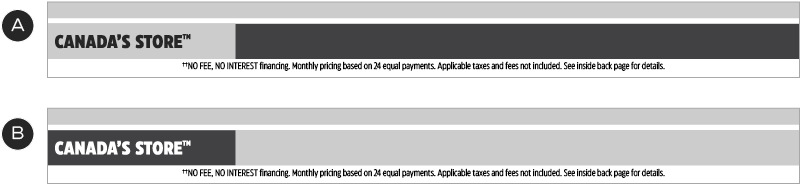
A – CT Steel
B – CT Soft Black
Signtures can appear in CT Steel or CT Soft Black. Select the colour that has the most contrast with the basebar message element so the division between the two elements is clearly defined.
Page number

The page number element appears on every page, contains the page number and the logo and is positioned on the outside edges of the footer. Front covers do not include the page number as it is an unnecessary element—in this case it is replaced by the signature element.
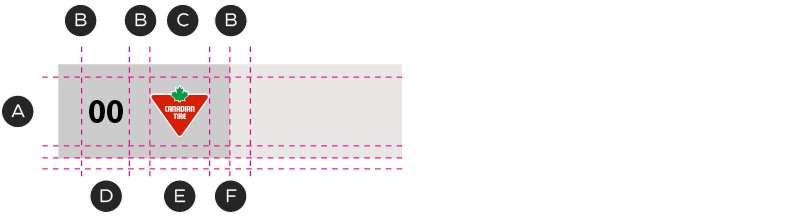
A – Height: 2p2 Width: 4p0 Top & bottom margins: 0p3
B – 0p6 vertical margins
C – CT Steel background colour
D – Page number copy: CT Eastman Condensed, Bold, 9pt, Centered
E – Micro Brandmark
F – 0p6 margin between logo and edge of element and edge of element and any basebar messaging
Basebar message
Basebars appear on all pages and should be text-based, with copy that has a clear hierarchy. Non-owned basebar messages must maintain the foundational basebar guidelines but may retain their own branding.

A – Left and right margins should align with slot margins
B – Variable width to accommodate a signtaure or page number
C – 0p3 top and bottom margins
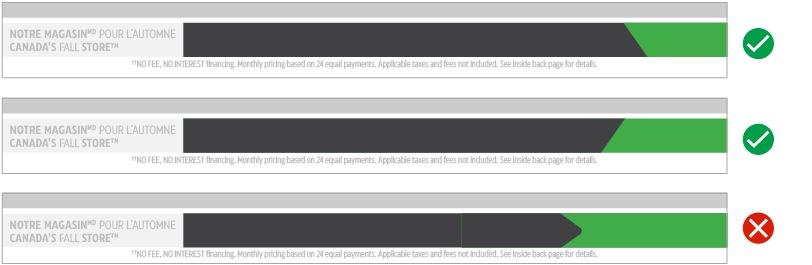
Due to the limited space, keep image use to a minimum and avoid using the cropped Triangle Element. Limited use of angled slashes are acceptable but must adhere to the recommended angles, as seen on the Triangle Element page.
Legal zone summary
Every Flyer requires some form of legal text. This text can be related to elements within the Flyer, claims made, or marketing regulations. Legal copy has a number of locations in which it can be placed in the Flyer, the most common being below the footer, but can also appear in the spine, in a slot and on the back cover.
Footer legal
Legal text that appears with the footer is located below the signature and basebar message. This space is dedicated to any legal text or disclaimers required for any element on the page or spread. The legal copy element exists outside of the grid but within the type safety.

A – Height: maximum height of 1p1 Width: full width
B – Legal copy: CT Eastman Regular Condensed at 7/7pt, centre-aligned. Maximum of 2 lines
C – 0p3 from bottom of signature and basebar message
Spine legal
The spine is the location where legal text relating to the pricing zone is placed. It lives outside the grid, appears on all pages and runs vertically in the spine margin. The information that is placed here is a part of the Flyer template and managed by TC. Do not alter this text in any way.

Front cover spine legal text
A – CT Eastman Grotesque, Regular, 7/7pt
B – Aligns to the bottom of the basebar

Inside spread spine legal text
A – Aligns to the bottom margin of the last grid row
B – CT Eastman Grotesque, Regular, 7/7pt
Individual slots can contain legal copy as well. This copy is placed with the slots product copy. For more information on the formatting of in-slot legal copy, please see the Product Copy page.
Header, footer & legal dos and don'ts

Do select the right size header for the level of priority the message requires.
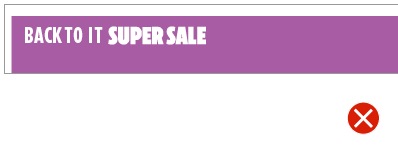
Don't create a new header or headline size. Sizing has been optimized for consistency across all Flyer and header shapes and sizes.
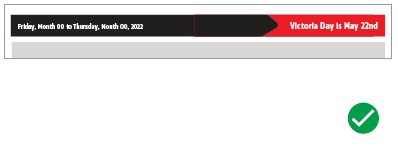
Do use the whisper when needed.

Don't alter the appearance of the front cover header.
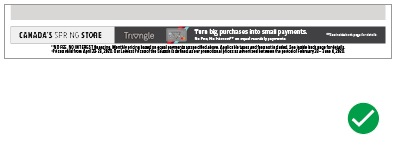
Do utilize the signature element to contain secondary messaging.
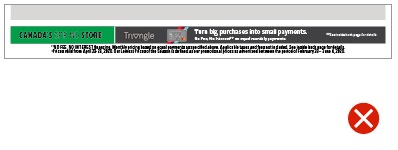
Don't recolour the signature element.
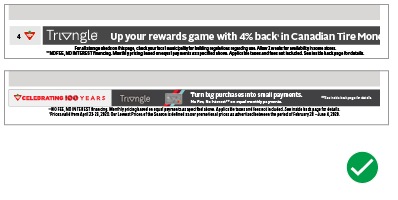
Do create new basebar messages in two sizes to accommodate full width and reduced width when a signature is in use.
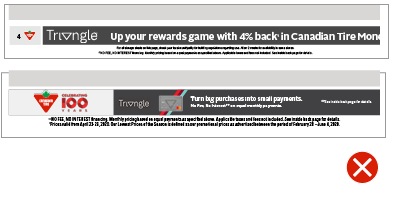
Don't change the size of the footer.
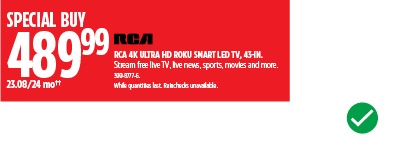
Do use the in-slot or footer legal copy elements to contain any legal disclaimers related to products.
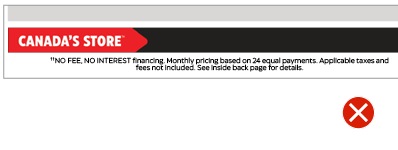
Don't alter the size or formatting or legal text.

Do use indicators when legal copy is not located in close (and clear) proximity to the claim/element it is related to.
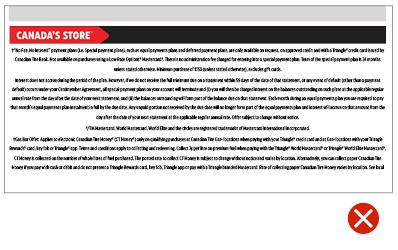
Don't overload any single location with legal copy.